
Installation
UAC Launch Control is available for Windows, macOS and Linux.
Windows
Section titled “Windows”-
Download the setup file from the releases.
Scroll down to Assets and find the Windows installer, ending with.exe. -
When download has finished, double click the downloaded file, follow any on screen instructions and the installer will take care of the rest.
Windows run warning
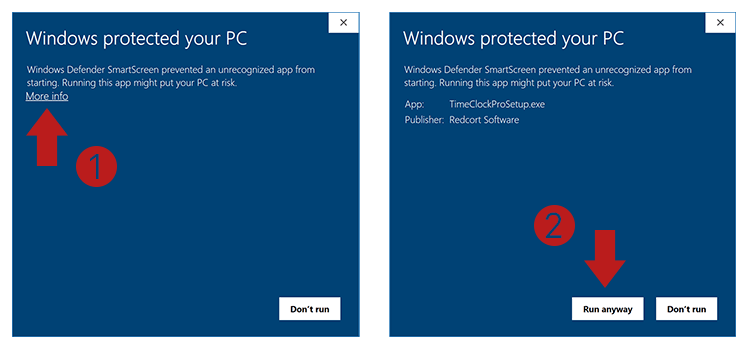
Section titled “Windows run warning”Please note that you will get a warning about “Windows prevented an application from running” when running an unsigned .exe file on your system.
You will need to click Run anyway to be able to install the application.
-
Download the
dmg-image from the releases.
Under Assets find the release ending with.dmg. -
When the download finishes, double click the
.dmgfile to mount the image. -
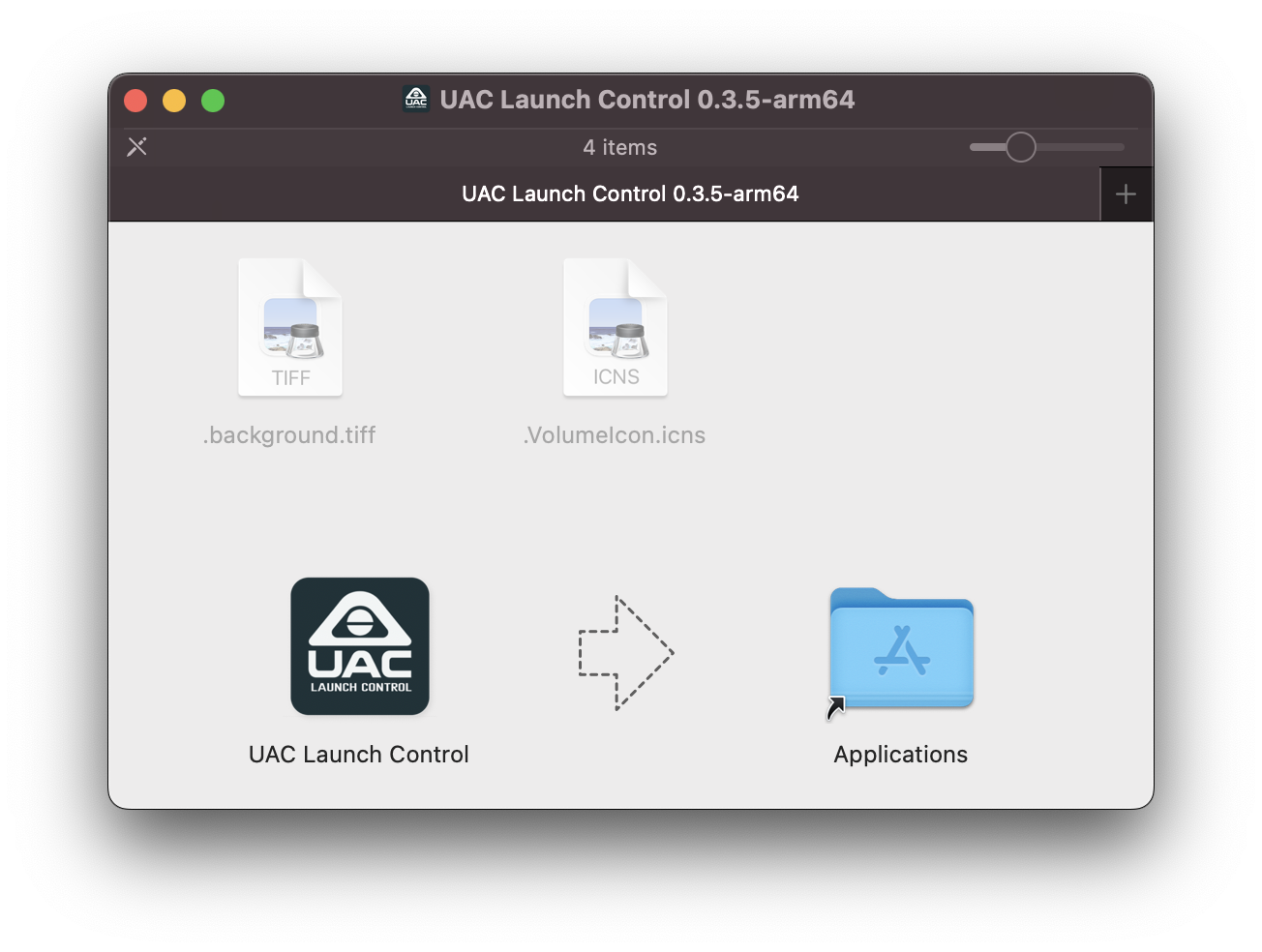
Drag-and-drop the UAC Launch Control app-icon to the Applications directory.
“UAC Launch Control Is Damaged and Can’t Be Opened. You Should Move It To The Trash”
Section titled ““UAC Launch Control Is Damaged and Can’t Be Opened. You Should Move It To The Trash””This is Apple’s way of saying “this app is not from our App Store”.
If you experience this error when opening UAC Launch Control, you need to unquarantine it.
You can unquarantine it by:
- Open a Terminal window
CMD+Spaceand typeTerminal, and hit Enter - Type or paste the following command before hitting Enter
xattr -dr com.apple.quarantine "/Applications/UAC Launch Control.app"- Re-open UAC Launch Control.
A zip version is also available for macOS if you prefer.
On Linux you have different options, depending on your Linux distro and what you want.
The recommended way is to use the AppImage from the Releases page. It is a single self-contained file that needs no installation and updates itself from within the app.
- Scroll down to Assets and click the
.AppImageversion. - When the download finishes, double-click the AppImage to open the application.
Ubuntu/Debian/PopOS/Mint
Section titled “Ubuntu/Debian/PopOS/Mint”If you don’t want to use the AppImage version you can use the .deb package on all Debian/Ubuntu derived distros.
-
Download the
.debfrom the Releases. -
Open a terminal, and install with
apt:
sudo apt install /PATH/TO/DOWNLOAD/uac-launch-control_VERSION_amd64.debIf you are unsure about /PATH/TO/DOWNLOAD/, type the first part of the command, drag the file into the terminal window, then press enter. Note which version you are downloading, as the number changes on each update.
Arch/CachyOS/Manjaro
Section titled “Arch/CachyOS/Manjaro”A prebuilt binary has been released on the AUR, that always follows the builds here on GitHub.
- Install with any AUR-helper, i.e
yayorparu.
# If you use yayyay -S uac-launch-control-bin
# If you use paruparu uac-launch-control-bin
Alternatively you can also download the PKGBUILD from the AUR and install it manually, if you don’t use a helper.
- Clone the repo with
git:
git clone https://aur.archlinux.org/uac-launch-control-bin.git- Change directory to the AUR repo:
cd uac-launch-control-bin- Run the build command:
makepkg -siand just follow the on-screen instructions.
Manually building the application
Section titled “Manually building the application”You can also download the entire repo and build the application manually.
See the Getting Started section of the For Developers guide for instructions.